The motherboard or PCB (Primary Circuit Board) is responsible for connecting all computer devices to the microprocessor. It supplies devices with power and allows the computer to react with them, Devices that can be used by connecting to the motherboard are: Storage devices, sound cards, graphic cards and hard disks.
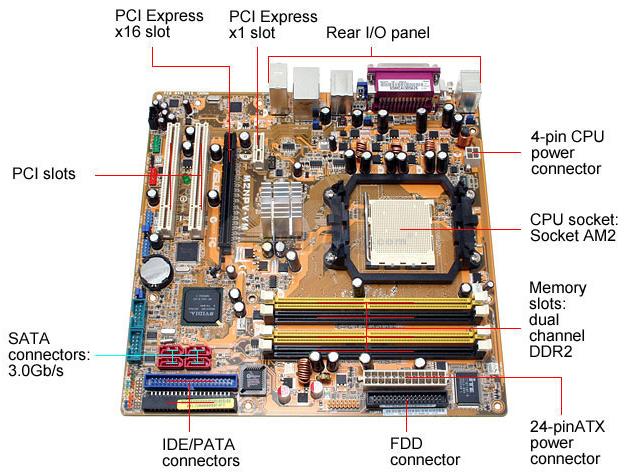
Devices or components that are needed to make the computer work as it should, are inbuilt within the motherboard or can be connected to it using a socket or port. Listed below are sockets and ports that are available on the motherboard for connecting devices and , what that they are capable of doing.
PCI (Peripheral Component Interconnect) slot: Supports peripherals like sound cards, DVD decoders, and graphic accelerators with 32 bits at 33Mhz capabilities. There are usually anywhere from 1 to 6 PCI slots available on the motherboard.
AGP (Accelerated Graphic Port): This provides fast bus speed connectivity along with fast access to the main memory. It is designed for video cards that demand higher bandwidth.
Chipset-North Bridge: An integrated circuit that has special duties.
CPU (Central Processing Unit) socket: A socket specifically for connecting your computer processor.
DIMM (Double Inline Memory Module) slots, SIMM (Single Inline Memory Module) and RIMM: Different types of memory (RAM) can be installed into these slots.
Motherboard Battery: A battery compartment, which stores the battery used for storing data such as system date and time, when you shut down your system.
IDE Connector: Responsible for connecting the IDE cord used for hard disks, CD drives, and DVD drives.
Firewire header (IEEE 1394): A serial bus used to exchange digital and audio data with high performance abilities.
The following listed items are parts that are built within the motherboard with specific connective uses such as keyboards, mouse, and printers.
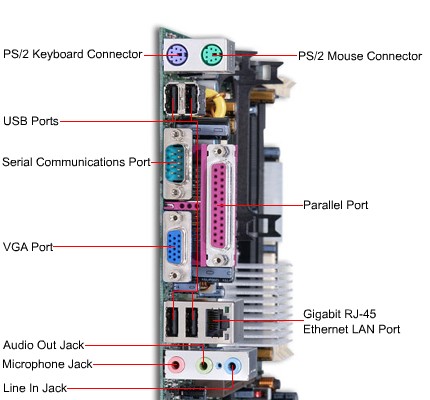
PS/2 Connectors: Each motherboard usually has 2 PS/2 connectors for the keyboard and the mouse.
USB (Universal Serial Bus) port: There are usually a couple of these ports located on each motherboard used for connecting pen drives and external hard drives, like Ipods or Mp3 players.
Parallel or (LPT) port: The place used to connect scanners and printers.
Game Port: The port to connect all gaming devices for example, a joystick.
Sound Card Connectors: Plug in your microphone or speakers here.
Display Connector: Connecting your monitor to the motherboard.
Back Panel
Ram (Random Access Memory)
Your computers memory, also called RAM or Random Access Memory, is used to
hold the information that the computer is working on. When you power the
computer on, it reads all the information needed to start Windows from the hard
drive into memory.
Once Windows is loaded, the computer loads any programs or files you open from
the hard drive into memory. The reason for this is the computer's memory, or
RAM, is hundreds of times faster than the computer's hard drive. This allows
the computer to perform faster.
The more memory your computer has the more programs and files can be opened at
once. For most computers 2GB is more than enough. If you plan to do a lot of
picture or video editing you should consider getting 4GB or more of RAM since
these types of applications take up more memory than typical programs. The
32bit versions of Windows XP, Vista and Windows 7, can only see 3.5GB of RAM.
There is a 64bit version of XP, but you should avoid using it.
Windows XP 64 has a lot of compatibility issues with programs and hardware.
If you need to use more than 3.5GB of RAM you will need to install the
64bit version of Windows Vista or Windows 7.
Types of RAM
There are currently 2 types of RAM used in computers today.
The older type which has been around for 5 years and is the most prevalent is
called DDR2. The newest type, which is going main stream, is called DDR3. DDR3
is able to run at higher speeds and, therefore, higher bandwidths. We go into
speed and bandwidth in a moment.
Keep in mind that most motherboards support either DDR2 or DDR3 so make sure
the motherboard you buy supports the type of DDR you’ll be using.
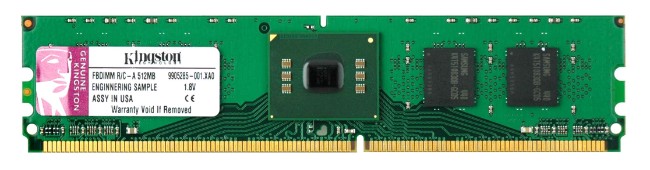
Memory comes in the form of a stick that attaches to the computer's motherboard
through a memory slot. The memory stick is actually made up of several
individual memory chips, that when added up, combine to create the storage
capacity of the memory stick. Memory sticks come in capacities of 512MB and 1,
2, 4 or 8GB.
Speed of Memory
The speed of the RAM is also important. The speed of memory is measured in
Mega Hertz or MHz and ranges from 400 MHz to 2000 MHz or 2 GHz and up.
Generally, you should get the fastest RAM the motherboard you choose can
handle.
Another measurement of RAM speed is called CAS. It’s measured in Nano seconds
or ns and comes in speeds of 3 or 7 ns for DDR2 RAM and between 6 and 10 ns for
DDR3 RAM. A lower CAS is better, but unless you're building a high end system
it's probably not worth paying extra for the lower CAS.
With both DDR2 and DDR3 the name refers to the bandwidth the memory has. So PC2
9600 can move 9600 MB of data per second.
To convert from bandwidth to the speed of RAM, you either multiply or divide by
8. So if you want to find the speed of PC2 9600 RAM, divide by 8 and you get
1200, or 1200 MHz, which is the actual speed of PC2 9600 DDR2 RAM. To go from
speed to bandwidth you multiply by 8.
This is useful to know when you’re shopping for RAM and motherboards since some
shops list only speed and other shops list only bandwidth. By multiplying or
dividing by 8, you can be sure a motherboard can support the RAM you buy.
Dual and Triple Channel
When you buy RAM for your new computer we recommend you get 2 sticks of DDR2
or DDR3 memory, at least 1GB in size with the same specifications, for a total
of 2GB. Since most motherboards have 4 available slots to add memory, you’ll
have 2 more slots available for adding memory in the future, should you need
to.
The reason for using 2 sticks of memory is so that you can enable Dual Channel
on the motherboard. Dual Channel combines the 2 sticks of memory to double
their bandwidth and increase the speed at which the RAM is accessed.
Intel socket 1366 motherboards support Triple Channel memory which triples the
memory bandwidth and requires 3 sticks of memory. More on this in a
moment.
Dual Channel support is standard on just about every motherboard made today.
The motherboard will detect the matched set of RAM sticks and enable Dual
Channel automatically. See the installation lesson 2 or your motherboard manual
to make sure Dual Channel is enabled.
If you want to add more memory in the future you can add another set of matched
memory sticks to keep Dual Channel active.
Intel's socket 1366 Core i7 CPU and motherboards with socket 1366 can use the
new Triple Channel DDR3 memory kits. DDR2 is not be supported. These
motherboards have 6 RAM slots so you can install 3 RAM sticks and still have 3
more available to add memory in the future and keep Triple Channel enabled.
One more thing about Dual Channel and Triple Channel memory. To make sure the
RAM sticks are well matched to each other it's best to buy kits of RAM that say
they support Dual or Triple Channel configurations. This will ensure the RAM is
stable and won't cause errors or crashes.
Video cards
A video card, video adapter, graphics accelerator card, display adapter, or graphics card is an expansion card whose function is to generate output images to a display. Many video cards offer added functions, such as accelerated rendering of 3D scenes and 2D graphics, video capture, TV-tuner adapter, MPEG-2/MPEG-4 decoding, FireWire, light pen, TV output, or the ability to connect multiple monitors (multi-monitor). Other modern high performance video cards are used for more graphically demanding purposes, such as PC games.
Video hardware can be integrated on the motherboard. However limitation to this integrated graphics chip often only occurs with early machines. In this configuration it is sometimes referred to as a video controller or graphics controller. Modern low-end to mid-range motherboards often include a graphics chipset developed by the developer of the northbridge (i.e. an nForce chipset with Nvidia graphics or an Intel chipset with Intel graphics) on the motherboard. This graphics chip usually has a small quantity of embedded memory and takes some of the system's main RAM, reducing the total RAM available. This is usually called integrated graphics or on-board graphics, and is low-performance and undesirable for those wishing to run 3D applications. A dedicated Graphics Card on the other hand has its own RAM and Processor specifically for processing video images, and thus offloads this work from the CPU and system RAM. Almost all of these motherboards allow the disabling of the integrated graphics chip in BIOS, and have an AGP, PCI, or PCI Express slot for adding a higher-performance graphics card in place of the integrated graphics. Despite the performance limitations, around 95% of new computers are sold with integrated graphics processors, leaving it for the individual user to decide whether to install a dedicated Graphics card.
Graphics processing unit (GPU)
A GPU is a dedicated processor optimized for accelerating graphics. The processor is designed specifically to perform floating-point calculations, which are fundamental to 3D graphics rendering and 2D picture drawing. The main attributes of the GPU are the core clock frequency, which typically ranges from 250 MHz to 4 GHz and the number of pipelines (vertex and fragment shaders), which translate a 3D image characterized by vertices and lines into a 2D image are formed by pixels.
Modern GPUs are massively parallel, and fully programmable. Their computing power is orders of magnitude higher than that of CPUs. As consequence, they challenge CPUs in high performance computing, and push leading manufacturers like Intel and AMD to integrate video, or massive parallelism, on processors.
Video BIOS
The video BIOS or firmware contains the basic program, which is usually hidden, that governs the video card's operations and provides the instructions that allow the computer and software to interact with the card. It may contain information on the memory timing, operating speeds and voltages of the graphics processor, RAM, and other information. It is sometimes possible to change the BIOS (e.g. to enable factory-locked settings for higher performance), although this is typically only done by video card overclockers and has the potential to irreversibly damage the card.
Video memory
| Type | Memory clock rate (MHz) | Bandwidth (GB/s) |
|---|---|---|
| DDR | 166 - 950 | 1.2 - 30.4 |
| DDR2 | 533 - 1000 | 8.5 - 16 |
| GDDR3 | 700 - 2400 | 5.6 - 156.6 |
| GDDR4 | 2000 - 3600 | 128 - 200 |
| GDDR5 | 3400 - 5600 | 130 - 230 |
The memory capacity of most modern video cards ranges from 128 MB to 4 GB.[1][2] Since video memory needs to be accessed by the GPU and the display circuitry, it often uses special high-speed or multi-port memory, such as VRAM, WRAM, SGRAM, etc. Around 2003, the video memory was typically based on DDR technology. During and after that year, manufacturers moved towards DDR2, GDDR3, GDDR4 and GDDR5. The effective memory clock rate in modern cards is generally between 400 MHz and 3.8 GHz.
Video memory may be used for storing other data as well as the screen image, such as the Z-buffer, which manages the depth coordinates in 3D graphics, textures, vertex buffers, and compiled shader programs.
RAMDAC
The RAMDAC, or Random Access Memory Digital-to-Analog Converter, converts digital signals to analog signals for use by a computer display that uses analog inputs such as CRT displays. The RAMDAC is a kind of RAM chip that regulates the functioning of the graphics card. Depending on the number of bits used and the RAMDAC-data-transfer rate, the converter will be able to support different computer-display refresh rates. With CRT displays, it is best to work over 75 Hz and never under 60 Hz, in order to minimize flicker.[3] (With LCD displays, flicker is not a problem.) Due to the growing popularity of digital computer displays and the integration of the RAMDAC onto the GPU die, it has mostly disappeared as a discrete component. All current LCDs, plasma displays and TVs work in the digital domain and do not require a RAMDAC. There are few remaining legacy LCD and plasma displays that feature analog inputs (VGA, component, SCART etc.) only. These require a RAMDAC, but they reconvert the analog signal back to digital before they can display it, with the unavoidable loss of quality stemming from this digital-to-analog-to-digital conversion.
Outputs

Power supply unit (computer)
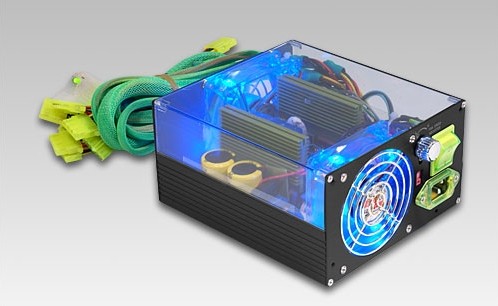
A power supply unit (PSU) is the component that supplies power to the other components in a computer. More specifically, a power supply unit is typically designed to convert general-purpose alternating current (AC) electric power from the mains (100-127V in North America, parts of South America, Japan, and Taiwan; 220-240V in most of the rest of the world) to usable low-voltage direct current (DC) power for the internal components of the computer. Some power supplies have a switch to change between 230 V and 115 V. Other models have automatic sensors that switch input voltage automatically, or are able to accept any voltage between those limits.
The most common computer power supplies are built to conform to the ATX form factor. This enables different power supplies to be interchangeable with different components inside the computer. ATX power supplies also are designed to turn on and off using a signal from the motherboard, and provide support for modern functions such as the standby mode available in many computers. The most recent specification of the ATX standard PSUPower rating
Computer power supplies are rated based on their maximum output power. Typical power ranges are from 500 W to lower than 300 W for small form factor systems intended as ordinary home computers, the use of which is limited to web-surfing and burning and playing DVDs. Power supplies used by gamers and enthusiasts mostly range from 450 W to 1400 W. Typical gaming PCs feature power supplies in the range of 500-800 W, with higher-end PCs demanding 800-1400 W supplies. The highest-end units are up to 2 kW strong and are intended mainly for servers and, to a lesser degree, extreme performance computers with multiple processors, several hard disks and multiple graphics cards. The power rating of a PC power supply is not officially certified and is self-claimed by each manufacturer. A common way to reach the power figure for PC PSUs is by adding the power available on each rail, which will not give a true power figure. Therefore it is possible to overload a PSU on one rail without having to use the maximum rated power.
This may mean that if:
- PSU A has a peak rating of 550 watts at 25°C, with 25 amps (300 W) on the 12 volt line, and
- PSU B has a continuous rating of 450 watts at 40°C, with 33 amps (400 W) on the 12 volt line,
and if those ratings are accurate, then PSU B would have to be considered a vastly superior unit, despite its lower overall power rating. PSU A may only be capable of delivering a fraction of its rated power under real world conditions.
This tendency has led in turn to greatly overspecified power supply recommendations, and a shortage of high-quality power supplies with reasonable capacities. Very few computers require more than 300–350 watts maximum.[1] Higher end computers such as servers and gaming machines with multiple high power GPUs are among the few exceptions. Although, in recent years the power demand of "video cards" in the ability to watch high definition (HD) media has led to even the average ATX computer to consume between 400 and 500 watts.
How to test computer power supply?
To be able to test your computer power supply , you can follow the instructions below;
Step 01
Turn off your power switch and plug it out from the power supply.
Step 02
Remove the cable from the computer and start unscrewing the power supply section in oder to remove the whole power supply from the computer.
Step 03
Once done, locate for the main ATX connector and find the green wire.
Step 04
Also locate for the black wire near the green wire with use of a paper clip, connect and safely bond to together with a piece of isolating tape.
Step 05
Put back all the power supply and switch the system on again and ensure that your system ventilation is working.
Step 06
To check whether and connection is correct , the molex in between the yellow and black wire should display at least 12 Volts.
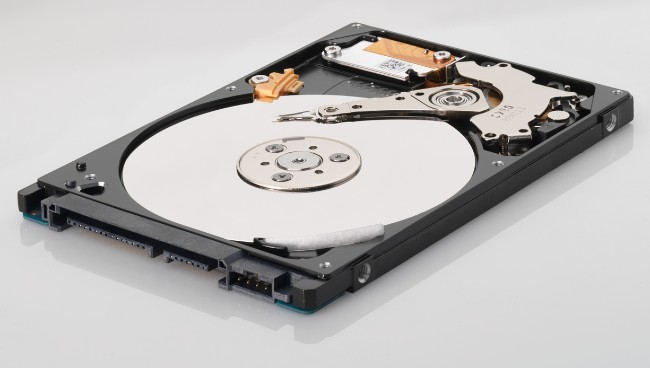
Hard disk drive
The hard drive is where all information is stored on your computer. Be it the Windows operating system, programs you install, or files you download and create on the computer. Everything is stored on the hard drive.
When selecting a hard drive to install into your computer there are two basic features you need to consider. They are the capacity and the speed of the drive.
Capacity:
Capacity is how much data a hard drive can store. Capacity is measured in Bits , Bytes, Mega Bytes , Giga Bytes and Tera Bytes.
8 Bit’s = 1Byte
1024Bytes = 1Kilo Byte
1024 Kilo Bytes = 1Mega Byte
1024Mega Bytes = 1 Giga Byte
1024 Giga Bytes = 1Tera Byte
Speed
The speed of the hard drive is determined by the revolution speed of the disk inside the hard drive and the amount of memory cache included in the drive.
The rotation speed is measured in Revolutions Per Minute (RPM). Most hard drive spins at 7200 revolutions per minute. Faster hard drives spin at 10000 or 15,000 RPMs. The revolutions speed is important because the faster the drive rotates, the more quickly data can be written to and read from, the hard drive.
10,000 and 15000 RPM drives are expensive and the capacities are limited
The memory cache helps to speed up the accessing of the information on the drive and the more of it the better. Drives can have 64 MB or more of cache. When purchasing a hard drive, a minimum of 32 MB of cache is recommended.
Solid State Drives (SSD)
Solid-state Drives or SSDs have no spinning disk to store data on. All information is kept on flash memory chips and can be written to and read back much quicker than from a disk based drive. Compared to disk based drives SSDs have lower capacities of between 8GB to 512GB. The cost per gigabyte is also much higher with SSDs.
Larger solid state drives are coming and you can expect the cost per gigabyte to drop, but disk based drives will continue to be the most popular do to their far greater storage capacity.
Interfaces:
The hard drive connects to the computer through the hard drive controller on the motherboard. The most common hard drive controller is called Serial ATA or SATA.
SATA controllers speed is measured in Mega Bytes or MB per second. The original form of SATA had a speed of 150 MBps.
SATA II controllers which are found on all motherboards today have a speed of 300 MBps.
To get the maximum speed of SATA III 600 MBps, both the motherboard and the hard drive itself have to support SATA III.
An older hard drive controller types, IDE, sometimes called ATA with speeds that topped out at 133 MBps is being phased out and will become less available on future motherboards.
Check the specifications on the
motherboard, before purchasing, for SATA II or SATA III support.
There is also a feature on most new motherboards called RAID. RAID allows you to connect 2 or more hard drives together so they show up as 1 drive in Windows. There are three kinds of RAID Arrays. RAID 0, 1 and 5.
RAID 0: Sometimes called Striping, spreads the data across 2 or more hard drives. This gives you around a 15% increase in performance. The downside to RAID 0 is that if just 1 of the drives in the RAID 0 Array fails you will loose all of your data, even on the hard drives that are still working because a portion of your data was on the drive that is now dead. If you use RAID 0 make sure you have your important data backed up off the RAID 0 Array.
RAID 1: Sometimes referred to as Mirroring, uses 2 hard drives and keeps the same data on both drives. This give you a built in backup at all times and gives you around a 15% to 50% performance increase in reading data from the drives. The downside to this is that you're using 2 hard drives and only getting the space of one. So if you have 2 250GB drives you're only getting 250GB of hard drive space.
RAID 5: Combines the striping of data in RAID 0 with the built in backup of RAID 1. 3 or more drives in a RAID 5 array keeps the usable data on 2 thirds of the drives combined space with 1 third of the drives space used as the redundant or Parity data. If one of the hard drives dies it can be replaced with a new drive and the remaining data on the other 2 drives is used to recreate the missing data and get the RAID 5 array back to a fully working state with no data loss. The performance increase over using single drives is between 15% to 25%.
Capacity measurements

Hard disk manufacturers quote disk capacity in multiples of SI-standard powers of 1000, where a terabyte is 1000 gigabytes and a gigabyte is 1000 megabytes. With file systems that report capacity in powers of 1024, available space appears somewhat less than advertised capacity. The discrepancy between the two methods of reporting sizes had serious financial consequences for at least one hard drive manufacturer when a class action suit argued the different methods effectively misled consumers.[17]
Semiconductor memory chips are organized so that memory sizes are expressed in multiples of powers of two. Hard disks by contrast have no inherent binary size. Capacity is the product of the number of heads, number of tracks, number of sectors per track, and the size of each sector. Sector sizes are standardized for convenience at 256 or 512 and more recently 4096 bytes, which are powers of two. This can cause some confusion because operating systems may report the formatted capacity of a hard drive using binary prefix units which increment by powers of 1024. For example, Microsoft Windows reports disk capacity both in a decimal integer to 12 or more digits and in binary prefix units to three significant digits.
A one terabyte (1 TB) disk drive would be expected to hold around 1 trillion bytes (1,000,000,000,000) or 1000 GB; and indeed most 1 TB hard drives will contain slightly more than this number. However some operating system utilities would report this as around 931 GB or 953,674 MB. (The actual number for a formatted capacity will be somewhat smaller still, depending on the file system.) Following are the several ways of reporting one Terabyte.
| SI prefixes (hard drive) | equivalent | Binary prefixes (OS) | equivalent |
|---|---|---|---|
| 1 TB (Terabyte) | 1 * 10004 B | 0.9095 TiB (Tebibyte) | 0.9095 * 10244 B |
| 1000 GB (Gigabyte) | 1000 * 10003 B | 931.3 GiB (Gibibyte) | 931.3 * 10243 B |
| 1,000,000 MB (Megabyte) | 1,000,000 * 10002 B | 953,674.3 MiB (Mebibyte) | 953,674.3 * 10242 B |
| 1,000,000,000 kB (Kilobyte) | 1,000,000,000 * 1000 B | 976,562,500 KiB (Kibibyte) | 976,562,500 * 1024 B |
| 1,000,000,000,000 B (byte) | - | 1,000,000,000,000 B (byte) | - |
External Hard drives
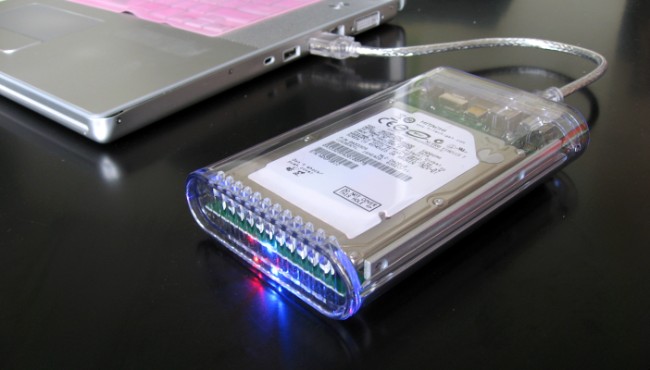
There are also hard drives that connect from the outside of the computer called External Hard drives. They have their own power supply, separate from the computer and connect through either FireWire, External SATA or USB 2.0 external interfaces. Which is useful if you need to take large amounts of data with you, on the go.
Universal Serial Bus
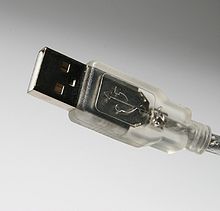
Universal Serial Bus (USB) is a specificationto establish communication between devices and a host controller (usually a personal computer), developed and invented by Ajay Bhatt, while working for Intel. USB has effectively replaced a variety of interfaces such as serial and parallel ports.
USB can connect computer peripherals such as mice, keyboards, digital cameras, printers, personal media players, flash drives, Network Adapters, and external hard drives. For many of those devices, USB has become the standard connection method.
USB was designed for personal computers, but it has become commonplace on other devices such as smartphones, PDAs and video game consoles, and as a power cord. As of 2008, there are about 2 billion USB devices sold per year, and approximately 6 billion total sold to date.
Unlike older connection standards such as RS-232 or Parallel port, USB connectors also supply electric power, so many devices connected by USB do not need a power source of their own.
Microprocessor
A microprocessor incorporates most or all of the functions of a computer's central processing unit (CPU) on a single integrated circuitThe first microprocessors emerged in the early 1970s and were used for electronic calculators, using binary-coded decimal (BCD) arithmetic on 4-bit words. Other embedded uses of 4-bit and 8-bit microprocessors, such as terminals, printers, various kinds of automation etc., followed soon after. Affordable 8-bit microprocessors with 16-bit addressing also led to the first general-purpose microcomputers from the mid-1970s on.
During the 1960s, computer processors were often constructed out of small and medium-scale ICs containing from tens to a few hundred transistors. The integration of a whole CPU onto a single chip greatly reduced the cost of processing power. From these humble beginnings, continued increases in microprocessor capacity have rendered other forms of computers almost completely obsolete (see history of computing hardware), with one or more microprocessors used in everything from the smallest embedded systems and handheld devices to the largest mainframes and supercomputers.
Since the early 1970s, the increase in capacity of microprocessors has been a consequence of Moore's law, which suggests that the number of transistors that can be fitted onto a chip doubles every two years. Although originally calculated as a doubling every year,Moore later refined the period to two years. It is often incorrectly quoted as a doubling of transistors every 18 months.
Intel 4004

The Intel 4004 is generally regarded as the first microprocessor,and cost thousands of dollars.The first known advertisement for the 4004 is dated November 1971 and appeared in Electronic News.The project that produced the 4004 originated in 1969, when Busicom, a Japanese calculator manufacturer, asked Intel to build a chipset for high-performance desktop calculators. Busicom's original design called for a programmable chip set consisting of seven different chips. Three of the chips were to make a special-purpose CPU with its program stored in ROM and its data stored in shift register read-write memory. Ted Hoff, the Intel engineer assigned to evaluate the project, believed the Busicom design could be simplified by using dynamic RAM storage for data, rather than shift register memory, and a more traditional general-purpose CPU architecture. Hoff came up with a four–chip architectural proposal: a ROM chip for storing the programs, a dynamic RAM chip for storing data, a simple I/O device and a 4-bit central processing unit (CPU). Although not a chip designer, he felt the CPU could be integrated into a single chip. This chip would later be called the 4004 microprocessor.
2nd Generation Intel® Core™ i7 Processor

The Intel® Core™ i7 processor delivers best-in-class performance for the most demanding applications. This quad-core processor features 8-way multitasking capability and additional L3 cache. With adaptive performance and built-in visual capabilities this 2nd generation processor brings more intelligence to your PC.
2nd generation Intel® Core™ i7 processors feature Intel® Turbo Boost Technology 2.0◊ and Intel® Hyper-Threading Technology◊, enabling required security applications and protocols to run efficiently in the background without compromising productivity.
Today's more visually sophisticated communication needs will be met with Intel® HD Graphics 2000 Technology, integrated into 2nd generation Intel Core processors. This eliminates the need for a discrete graphics card, reducing power consumption and system cost.
FEATURES AND BENEFITS
With 2nd generation Intel Core i7 processors, you get the following features built in:
- Intel® Turbo Boost Technology 2.0◊ dynamically increases the processor frequency as needed by taking advantage of thermal and power headroom when operating below specified limits.
- Intel® HT Technology◊ allows each core of your processor to work on two tasks at the same time.
- Intel® Smart Cache is dynamically allocated to each processor core based on workload, which significantly reduces latency and improves performance.
- Advanced Encryption Standard New Instructions add hardware acceleration to AES algorithms and speeds up the execution of AES applications.
Intel's Core i3 and i5 dual-core processors
I imagine an enormous trebuchet, loaded up to the max, ready to begin its slowly accelerating rotation. Intel tells us it plans to "launch" a whole host of new products today, including 17 new CPUs, seven 5-series chipsets, and next-gen Wi-Fi and WiMax network adapters. These products, presumably, are being launched at consumers, so you might want to duck.
Those numbers are correct, of course, but devoid of context, they may seem a little overly dramatic. At the heart of all of these product introductions is a core set of technologies, based on the microprocessor known as Clarkdale, and those technologies have been spun into a range of products for different markets. This explosion of new processors and chipsets marks the final major step in the march of the microprocessor architecture known as Nehalem across Intel's core desktop and mobile lineups. If you've been paying attention, you'll know that's likely a very good thing, since earlier Core i5 and i7 processors have been excellent in most ways that matter, including performance, power efficiency, and—starting with the introduction of the Lynnfield chips this past fall—value.
Core i3 Vs i5 Vs i7: Technical Specifications
Let us begin with the core i3 line. Core i3 5xx (Clarkdale) series
launched in January 2010 consists of three processors (i3-530, i3-540
and i3-550) with a clocking frequency ranging from 2933 MHz to 3200 MHz.
All three processors have a 2x256 KB L2 cache, 4MB L3 smart cache with
DMI (direct media interface) bus and are fitted with the new LGA 1156
socket. All three processors have two cores and an integrated GPU
(Graphic Processing Unit) and are based on a 32 nm architecture which
enables more transistors to be placed on a chip compared to the earlier
45 nm architecture.
The processors have two cores and four threads backed by Intel's
hyperthreading and virtualization technology that enhances the
multitasking ability of these chips. Hyperthreading is simultaneous
multithreading ability. The Intel HD graphics technology offers great
visual performance. All in all, the core i3 series is a great entry
level chip that offers all that a home user needs including high quality
3D graphics and great multitasking ability. The price for all the chips
is around $133. Other than these processors Intel has developed i3, i5
and i7 lines for mobile phones too.
Now let us move to the second part of our core i3 vs i5 vs i7 comparison
and discuss the core i5 line of processors. This family of processors
consists of three lines of processors which include the core i5 7xx,
core i5 7xxS and core i5 6xx series. They have processor clocking
frequencies ranging from 2.4 GHz to 3.33 GHz which can be enhanced by
Intel's new Turbo Boost technology. Some processors have 4 cores with 4
threads (core i5-7xx and core i5-7xxS Lynnfield series) and some with 2
cores and 4 threads (core i5- 6xx Clarkdale Series with hyperthreading
disabled). Most have an 8MB L3 cache, with LGA 1156 socket, direct media
interface and integrated GPU. All are enabled with Intel Turbo Boost
technology, Intel HD graphics and Intel Smart Cache technology. Prices
range from $176 to $256. Core i5 have the edge over the core i3
processors in terms of the Turbo Boost technology that makes them faster
and powerful.
Let us now move towards the last part of the intel core i3 vs i5 vs i7
comparison and discuss the core i7 processor family. The core i7 family
of processors are built to outperform. They consist of eight different
series of processors. Dubbed by Intel to be 'The Best Processors On the
Planet', these are quad core processors with 8 threads with clocking
frequencies touching 3.06 GHz which can be enhanced to 3.33 GHz with
Intel's Turbo Boost and Hyperthreading Technology.
With 8 MB of smart cache which reaches 12 MB in the Gulftown line, these
processors are nothing short of phenomenal. With 3 channels of DDR3
1066 MHz memory that is backed by an integrated memory controller and
Intel's QuickPath Interconnect technology (that enables upto 25.6 GB/Sec
of data transfer speed), the core i7 processors are simply unbeatable.
The prices range from $320 to $1000.
Core i3 Vs i5 Vs i7: Performance
In terms of performance, if you make a core i3 vs i5 vs i7 comparison,
the graph rises higher as you go from the i3 line, through the i5 line
towards the core i7 line. Core i3 is a great entry level processor that
offers high definition graphics and 3D capabilities and ensures that
multitasking wouldn't take a toll on computer speed. This is the default
pick for home users with desktop computers.
The core i5 line is speedier and more powerful than the i3 line offering
all that the i3 series offers and yet goes beyond in terms of
performance. The Turbo Boost technology along with hyperthreading
technology enables two different tasks to be handled by two different
processors which increases processing speed. They are the best
processors for laptops with a high level of multitasking needs.
A core i5 vs core i7
comparison reveals that the i7 lines are simply miles ahead of the two
other processor lines. The i3 vs i5 vs i7 benchmark tests reveal core i7
processors to be the clear winners. The i7 line has an inherent
advantage provided by the four cores. A quad core vs dual core
comparison will reveal the edge that more cores give a processor. You
can develop 3D games and images, go for video editing and get an
unparalleled gaming experience. Core i7 line places phenomenal computing
power at your fingertips.
Hope this straightforward core i3 vs i5 vs i7 comparison has cleared any
doubts you had about these new processor lines developed by Intel. Opt
for core i3 processors if you are a home user with graphic intensive
application usage and mainly multimedia use. Core i5 processors are for
people who want to go for intensive gaming and run heavy programs. The
top of the line core i7 processors are best for people who want to go
for intensive multitasking and are designed for computers that have to
function as web servers or database servers, video editing workstations
or developer workstations. They are designed for business use. However,
all depends on how much are you willing to pay for a new laptop or
desktop. If you can afford it, why not go for a top of the line
processor of the core i7 line? The decision is yours of course. Choose
any processor from any line but my personal recommendation would be to
go for the mid level core i5 series, which is cost effective, reasonably
priced and offers real value for your money!
How to Built a computer ( Assembeling)
